上一篇
html5 如何定位输入框
HTML5中可通过CSS设置input的 position: fixed/absolute或使用Flexbox布局实现 输入框定位
在HTML5中实现输入框的精准定位是前端开发中的常见需求,尤其在移动端适配、复杂页面布局等场景下尤为重要,以下是结合多种技术方案的详细解析:
基础定位方法与适用场景
| 定位类型 | 核心属性 | 适用场景 | 示例代码 |
|---|---|---|---|
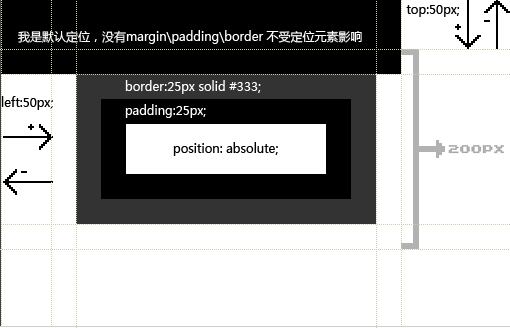
| 绝对定位 | position: absolute | 相对于最近非静态定位祖先元素定位 | “`css |
container { position: relative; }
inputBox { position: absolute; bottom: 10px; left: 20px; }
| 固定定位 | `position: fixed` | 相对于视口固定位置(如底部输入框) | ```css input#message { position: fixed; bottom: 0; left: 0; width: 100%; } ``` | | 相对定位 | `position: relative` | 保留原文档流位置,用于动态调整定位类型 | ```js // 初始为fixed,聚焦时转为relative const input = document.querySelector('#message'); input.addEventListener('focus', () => { input.style.position = 'relative'; }); ``` | 二、进阶定位策略 1. 弹性盒子布局(Flexbox) 通过设置父容器为`display: flex`,可自动对齐输入框,适用于多输入框横向排列场景: ```css .form-group { display: flex; justify-content: space-between; } .form-group input { flex: 1; margin: 0 5px; }
-
动态定位调整
针对移动端键盘弹出遮挡问题,需监听输入框聚焦事件并动态修改定位:
const handleFocus = () => { const input = document.getElementById('message'); input.style.position = 'relative'; // 避免键盘遮挡 }; const handleBlur = () => { document.getElementById('message').style.position = 'fixed'; }; const input = document.getElementById('message'); input.addEventListener('focus', handleFocus); input.addEventListener('blur', handleBlur); -
响应式单位与媒体查询
结合rem、vh等单位实现自适应定位:
@media (max-width: 768px) { #searchBox { bottom: env(safe-area-inset-bottom); / 适配iPhone安全区 / } }
特殊场景处理
-
弹窗内输入框定位
当输入框位于弹窗(modal)内部时,需采用relative定位并配合弹窗容器的absolute定位:
-
多输入框联动定位
通过JavaScript控制多个输入框的位置关系,例如同步移动评论输入框与表情选择框:
const emoticonBox = document.getElementById('emoticon'); const commentInput = document.getElementById('comment'); commentInput.addEventListener('input', () => { emoticonBox.style.top = `${commentInput.offsetTop + 30}px`; });
-
表单关联定位
利用<label>的for属性或aria-labelledby实现点击标签时自动聚焦输入框:
<label for="email">邮箱:</label> <input id="email" type="email" /> -
浏览器差异处理
- Android部分版本存在fixed定位计算偏移,需添加padding-bottom补偿: body { padding-bottom: env(safe-area-inset-bottom); }
- iOS Safari需设置-webkit-overflow-scrolling: touch以支持滚动穿透。
-
性能优化建议
- 减少DOM操作频率,将多次定位修改合并为一次性样式更新
- 使用transform替代top/left定位,提升渲染性能
- 对动态调整的定位参数进行节流处理(throttle)
- 优先使用ID/Class选择器:避免直接通过标签名选择输入框,提高代码可维护性
- 分层定位策略:先通过CSS完成基础布局,再通过JS处理动态交互
- 测试工具推荐
- 使用Chrome DevTools模拟不同设备分辨率
- 通过Lighthouse检测布局性能
- 在真机上测试虚拟键盘弹出效果
兼容性与性能优化
最佳实践归纳
FAQs
Q1:动态生成的输入框如何精准定位?
A1:为动态元素添加唯一class或data属性,
const newInput = document.createElement('input'); newInput.className = 'dynamic-input'; document.body.appendChild(newInput); // 定位样式 .dynamic-input { position: fixed; top: 50%; left: 50%; transform: translate(-50%, -50%); }
Q2:如何防止输入框被键盘遮挡?
A2:监听窗口尺寸变化,动态调整输入框位置:
window.addEventListener('resize', () => { const input = document.querySelector('#message'); if (input.style.position === 'fixed') { input.style.bottom = `${window.innerHeight 0.05}px`; }