上一篇
HTML5怎样制作图片轮播效果?
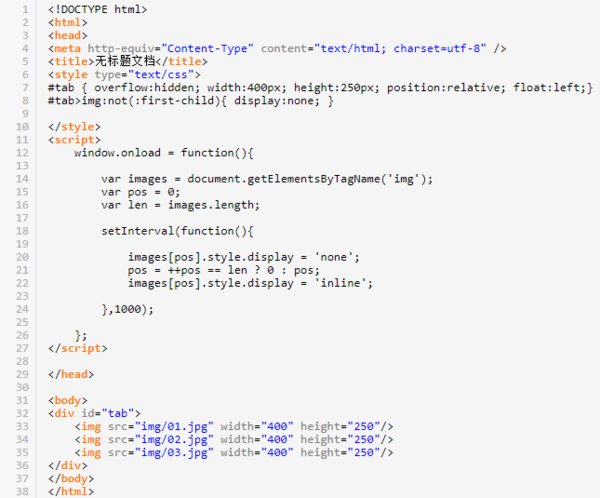
HTML5实现图片轮转主要通过CSS3动画和JavaScript控制,核心步骤:构建图片容器,使用绝对定位重叠图片;通过CSS关键帧动画或JS定时器切换透明度/位移;结合transform和transition实现平滑过渡,可添加导航按钮和响应式设计增强交互。
在网页设计中,图片轮转(轮播图)是展示多张图片或内容的常用交互组件,HTML5结合CSS3和JavaScript可灵活实现这一功能,以下是专业级的实现方案:
核心实现原理
图片轮转的本质是通过动态切换显示层实现,需掌握三个关键技术:
- HTML结构:容器包裹图片列表
- CSS布局:绝对定位实现层叠,隐藏非活动项
- JavaScript控制:定时切换与用户交互
纯CSS3实现方案(简单轮播)
<div class="carousel"> <input type="radio" name="slides" id="slide1" checked> <input type="radio" name="slides" id="slide2"> <div class="slides"> <img src="img1.jpg" alt="产品展示" loading="lazy"> <img src="img2.jpg" alt="使用场景" loading="lazy"> </div> <div class="controls"> <label for="slide1"></label> <label for="slide2"></label> </div> </div> <style> .carousel { position: relative; height: 400px; } .slides img { position: absolute; opacity: 0; transition: opacity 1s; width: 100%; height: auto; } #slide1:checked ~ .slides img:nth-child(1), #slide2:checked ~ .slides img:nth-child(2) { opacity: 1; } .controls label { display: inline-block; width: 15px; height: 15px; background: #ccc; border-radius: 50%; cursor: pointer; } </style>
优点:零JS依赖、性能轻量
缺点:缺乏自动轮播、功能受限
JavaScript动态方案(推荐)
<div id="carousel" aria-label="产品图片轮播"> <div class="slides-container"> <img src="img1.jpg" alt="产品主图" class="active" loading="lazy"> <img src="img2.jpg" alt="产品细节" loading="lazy"> <img src="img3.jpg" alt="用户评价" loading="lazy"> </div> <button class="prev" aria-label="上一张"></button> <button class="next" aria-label="下一张"></button> <div class="indicators"></div> </div> <script> class Carousel { constructor(containerId) { this.container = document.getElementById(containerId); this.slides = this.container.querySelectorAll('img'); this.currentIndex = 0; this.init(); } init() { // 创建指示器 this.indicators = this.container.querySelector('.indicators'); this.slides.forEach((_, i) => { const dot = document.createElement('button'); dot.classList.add('dot'); dot.setAttribute('aria-label', `跳转到第${i+1}张`); dot.addEventListener('click', () => this.goToSlide(i)); this.indicators.appendChild(dot); }); // 事件绑定 this.container.querySelector('.prev').addEventListener('click', () => this.prevSlide()); this.container.querySelector('.next').addEventListener('click', () => this.nextSlide()); // 自动轮播 this.autoPlay = setInterval(() => this.nextSlide(), 5000); this.container.addEventListener('mouseenter', () => clearInterval(this.autoPlay)); this.container.addEventListener('mouseleave', () => { this.autoPlay = setInterval(() => this.nextSlide(), 5000); }); this.update(); } update() { // 更新可见状态 this.slides.forEach((slide, i) => { slide.classList.toggle('active', i === this.currentIndex); }); // 更新指示器 this.indicators.querySelectorAll('.dot').forEach((dot, i) => { dot.classList.toggle('active', i === this.currentIndex); }); } nextSlide() { this.currentIndex = (this.currentIndex + 1) % this.slides.length; this.update(); } prevSlide() { this.currentIndex = (this.currentIndex - 1 + this.slides.length) % this.slides.length; this.update(); } goToSlide(index) { this.currentIndex = index; this.update(); } } new Carousel('carousel'); </script> <style> /* 关键样式 */ .carousel { position: relative; max-width: 1200px; margin: 0 auto; } .slides-container img { position: absolute; width: 100%; transition: opacity 0.6s ease; opacity: 0; } .slides-container img.active { opacity: 1; position: relative; } .indicators { position: absolute; bottom: 20px; left: 50%; transform: translateX(-50%); } .dot { width: 12px; height: 12px; margin: 0 5px; border-radius: 50%; background: rgba(255,255,255,0.5); border: none; cursor: pointer; } .dot.active { background: white; } button { position: absolute; top: 50%; transform: translateY(-50%); } .prev { left: 15px; } .next { right: 15px; } </style>
专业级优化策略
-
SEO友好性:
- 每张图片添加描述性alt属性
- 使用loading="lazy"延迟加载
- 结构化数据标记(JSON-LD)
-
性能优化:
.slides-container { will-change: transform; /* 启用GPU加速 */ aspect-ratio: 16/9; /* 避免布局偏移 */ }
- 图片预加载:<link rel="preload" as="image" href="img2.jpg">
- 响应式图片:<img srcset="small.jpg 480w, large.jpg 1080w">
-
可访问性增强:
- 添加aria-live="polite"声明动态区域
- 焦点管理:tabindex="0"使控件可键盘操作
- 禁用自动轮播时提供播放/暂停按钮
-
移动端适配:
- 添加触摸事件支持: this.container.addEventListener('touchstart', handleTouchStart); this.container.addEventListener('touchend', handleTouchEnd);
- 使用@media (hover: hover)区分触摸设备
-
开源库推荐:
-
框架集成:
- React:react-slick组件
- Vue:vue-awesome-swiper
- 使用Web Components原生封装
- 布局抖动:提前设置容器宽高比
- 内存泄漏:移除事件监听 window.removeEventListener
- SEO陷阱:避免通过JS动态载入关键内容
- 性能监控:使用Lighthouse检测CLS(累积布局偏移)
- 图片体积不超过200KB
- 轮播项控制在5个以内
- 提供替代浏览方式(如并排缩略图)
- 用户交互后暂停自动轮播
避坑指南
最佳实践:
引用说明:
本文实现方案参考MDN Web文档的CSS动画指南及W3C的WAI-ARIA实践,性能优化部分依据Google的Web Vitals指标,触摸事件处理遵循Pointer Events规范。
高级方案选择