上一篇
如何配置服务器双网卡 | 服务器双网口设置教程
在服务器上配置第二个网口(网络接口)通常涉及以下步骤,具体操作取决于操作系统(如Linux发行版或Windows Server),以下是针对Linux(以Ubuntu/CentOS为例)和Windows Server的通用指南:
Linux 系统(Ubuntu/CentOS)
确认网口识别
ip link show # 查看所有网口名称(如 eth0, eth1, enp3s0 等) lspci | grep -i ethernet # 检查硬件是否被识别
配置网络
-
Ubuntu (使用 Netplan)
- 编辑 Netplan 配置文件(路径可能不同): sudo nano /etc/netplan/00-installer-config.yaml
- 添加第二个网口的配置(示例静态IP): network: version: 2 renderer: networkd ethernets: eth0: # 第一个网口 dhcp4: true eth1: # 第二个网口 dhcp4: no addresses: [192.168.2.100/24] # 静态IP routes: - to: default via: 192.168.2.1 # 网关(可选) nameservers: addresses: [8.8.8.8, 1.1.1.1] # DNS
- 应用配置: sudo netplan apply
-
CentOS/RHEL (使用 NetworkManager)
- 创建配置文件: sudo nmcli con add type ethernet con-name eth1 ifname eth1 ipv4.addresses 192.168.2.100/24 ipv4.gateway 192.168.2.1 ipv4.dns "8.8.8.8" ipv4.method manual
- 激活连接: sudo nmcli con up eth1
- 打开网络配置
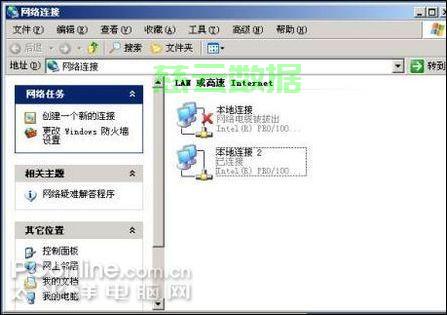
- 按 Win + R → 输入 ncpa.cpl → 打开“网络连接”。
- 配置第二个网卡
- 右键单击第二个网卡(如“以太网 2”)→ 选择“属性”。
- 双击 Internet 协议版本 4 (TCP/IPv4)。
- 设置IP地址
- 选择 使用下面的 IP 地址:
- IP 地址:168.2.100
- 子网掩码:255.255.0
- 默认网关:168.2.1(如需要)
- 设置DNS服务器地址。
- 选择 使用下面的 IP 地址:
- 保存并测试
- 点击“确定”保存,在命令提示符中运行: ipconfig /all # 检查新IP ping 192.168.2.1
- 避免IP冲突
确保新IP与局域网内其他设备不冲突。

- 网关冲突
- 若第一个网口已设网关,第二个网口通常不设网关(除非用于多路由表或特定路由策略)。
- 防火墙规则
- 更新防火墙允许新网口的流量(如Linux的 ufw 或 Windows 防火墙)。
- 绑定与聚合
如需冗余/负载均衡,可配置网卡绑定(Linux Bonding/LACP)或Windows NIC Teaming。
- 路由表
- 多网口时,使用 ip route(Linux)或 route print(Windows)管理路由优先级。
- 网口未识别:检查网线/驱动(Linux: dmesg | grep eth)。
- 无法联网:用 traceroute 或 tracert 分析路径。
- DNS失效:检查 /etc/resolv.conf(Linux)或DNS设置(Windows)。
故障排查
根据实际需求调整IP、子网掩码和路由策略,对于复杂网络(如VLAN、桥接),需额外配置。
验证连接
ip addr show eth1 # 检查IP分配 ping 192.168.2.1 # 测试网关连通性
Windows Server
关键注意事项