上一篇
Linux时间服务器配置过程中,有哪些关键步骤和注意事项需要特别注意?
Linux时间服务器的配置是一个重要的任务,因为它确保了系统时间的准确性和一致性,以下是一个详细的配置步骤,包括NTP(网络时间协议)服务器的安装、配置和测试。
安装NTP服务
确保你的Linux系统已经安装了NTP服务,以下是在基于Debian的系统(如Ubuntu)上安装NTP的命令:
sudo aptget update sudo aptget install ntp
对于基于Red Hat的系统(如CentOS),可以使用以下命令:
sudo yum install ntp
配置NTP服务器
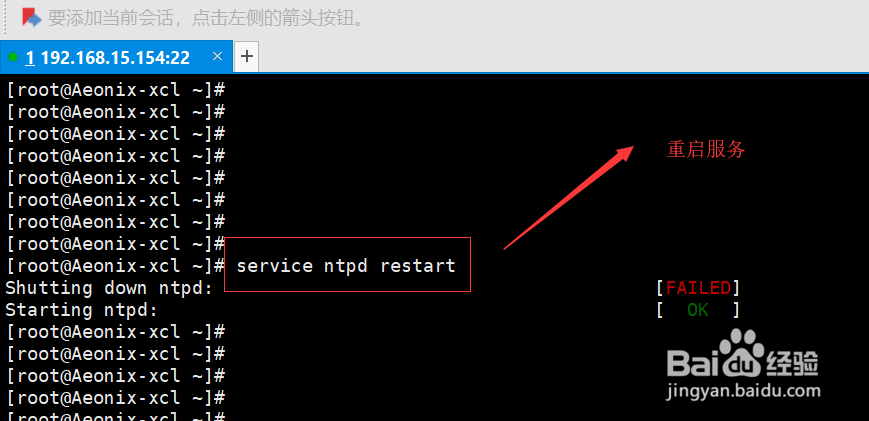
安装完成后,需要编辑NTP服务器的配置文件,以下是配置文件的位置和内容:
- Debian/Ubuntu:
- 文件位置:/etc/ntp.conf
- Red Hat/CentOS:
- 文件位置:/etc/ntp.conf
启动和启用NTP服务
配置完成后,启动NTP服务并设置为随系统启动自动运行:
- Debian/Ubuntu:
sudo systemctl start ntp sudo systemctl enable ntp
- Red Hat/CentOS:
sudo systemctl start ntpd sudo systemctl enable ntpd
测试NTP服务
要测试NTP服务是否正常工作,可以使用以下命令:
sudo ntpstat
或者:
配置防火墙
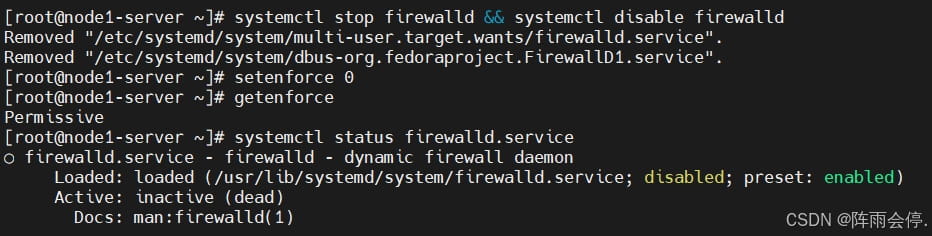
如果NTP服务需要通过防火墙,确保允许UDP端口123的流量:
- Debian/Ubuntu:
sudo ufw allow ntp
- Red Hat/CentOS:
sudo firewallcmd permanent addport=123/udp sudo firewallcmd reload
验证时间同步
验证时间是否已经同步:
date
表格:NTP服务器配置步骤
| 步骤 | Debian/Ubuntu | Red Hat/CentOS |
|---|---|---|
| 安装NTP服务 | sudo aptget install ntp | sudo yum install ntp |
| 编辑NTP配置文件 | 修改/etc/ntp.conf | 修改/etc/ntp.conf |
| 启动和启用NTP服务 | sudo systemctl start ntp; sudo systemctl enable ntp | sudo systemctl start ntpd; sudo systemctl enable ntpd |
| 测试NTP服务 | sudo ntpstat | sudo ntpstat |
| 配置防火墙 | sudo ufw allow ntp | sudo firewallcmd permanent addport=123/udp; sudo firewallcmd reload |
| 验证时间同步 | date | date |
FAQs
Q1: 如何查看NTP服务的状态?
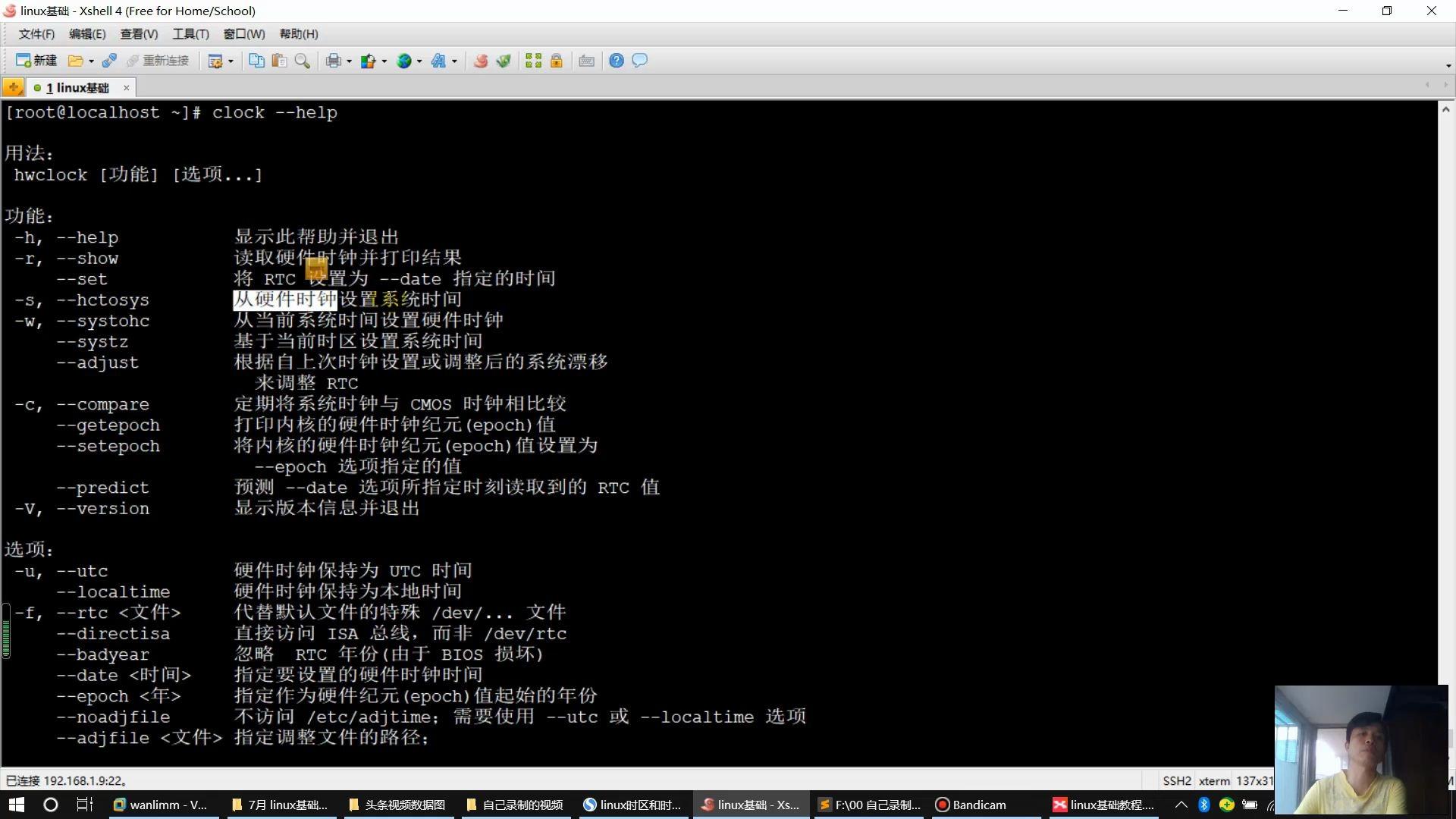
A1: 使用以下命令查看NTP服务的状态:
sudo systemctl status ntp
或者:
sudo systemctl status ntpd
Q2: 如何手动同步时间?
A2: 使用以下命令手动同步时间:
sudo ntpdate pool.ntp.org