上一篇
java linux怎么登陆界面
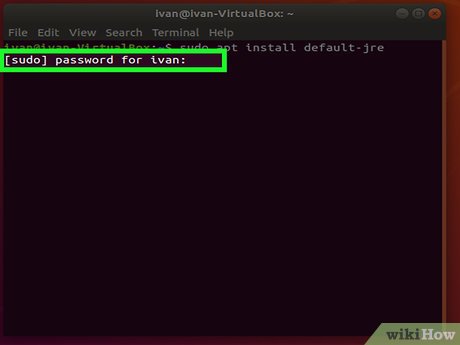
Java中登录Linux界面,可使用JSch库实现SSH连接,通过Session对象设置主机、端口、用户名和密码,建立连接后可执行命令
Java中实现Linux登录界面有多种方式,以下是几种常见的方法及其详细步骤:
使用JSch库通过SSH连接Linux并执行命令
添加JSch依赖
如果使用Maven项目,可以在pom.xml文件中添加以下依赖:
<dependency> <groupId>com.jcraft</groupId> <artifactId>jsch</artifactId> <version>0.1.54</version> </dependency>
编写Java代码
以下是一个简单的示例代码,展示如何使用JSch库连接到Linux服务器并执行命令:
import com.jcraft.jsch.; public class SSHExample { public static void main(String[] args) { String host = "your_host"; // Linux服务器的IP地址或主机名 int port = 22; // SSH端口,默认为22 String username = "your_username"; // 登录Linux的用户名 String password = "your_password"; // 登录Linux的密码 String command = "your_command"; // 需要执行的命令 try { JSch jsch = new JSch(); Session session = jsch.getSession(username, host, port); session.setPassword(password); session.setConfig("StrictHostKeyChecking", "no"); // 避免首次连接时的主机密钥检查提示 session.connect(); // 建立连接 Channel channel = session.openChannel("exec"); ((ChannelExec) channel).setCommand(command); channel.setInputStream(null); ((ChannelExec) channel).setErrStream(System.err); InputStream input = channel.getInputStream(); channel.connect(); byte[] buffer = new byte[1024]; StringBuilder output = new StringBuilder(); while (true) { while (input.available() > 0) { int bytesRead = input.read(buffer); output.append(new String(buffer, 0, bytesRead)); } if (channel.isClosed()) { if (input.available() > 0) continue; output.append("Exit status: ").append(channel.getExitStatus()); break; } try { Thread.sleep(1000); } catch (InterruptedException ignored) {} } System.out.println(output.toString()); channel.disconnect(); session.disconnect(); } catch (JSchException | IOException e) { e.printStackTrace(); } } }
代码说明
- JSch对象:用于创建SSH会话。
- Session对象:表示SSH会话,设置用户名、主机和端口。
- Channel对象:用于执行命令,这里使用exec通道。
- 输入流:读取命令执行的输出。
注意事项
- 确保目标Linux服务器已开启SSH服务。
- 如果需要频繁连接,建议配置SSH密钥认证,以避免每次输入密码。
使用Runtime类执行Linux脚本
编写Linux脚本
编写一个Linux脚本,用于通过SSH实现远程登录,创建一个名为login.sh的脚本:
#!/bin/bash ssh -t -t your_username@your_host
编写Java代码
以下是一个示例代码,展示如何在Java中调用该脚本:
import java.io.BufferedReader; import java.io.IOException; import java.io.InputStreamReader; public class RemoteLogin { public static void main(String[] args) { String command = "sh /path/to/login.sh"; // 替换为实际的脚本路径 String output = executeCommand(command); System.out.println(output); // 输出远程登录的结果 } private static String executeCommand(String command) { StringBuffer output = new StringBuffer(); Process p; try { p = Runtime.getRuntime().exec(command); p.waitFor(); BufferedReader reader = new BufferedReader(new InputStreamReader(p.getInputStream())); String line = ""; while ((line = reader.readLine()) != null) { output.append(line + " "); } } catch (IOException | InterruptedException e) { e.printStackTrace(); } return output.toString(); } }
代码说明
- Runtime.getRuntime().exec():用于执行系统命令或脚本。
- Process对象:表示正在执行的进程,可以通过其输入流读取执行结果。
注意事项
- 确保脚本具有可执行权限(chmod +x login.sh)。
- 如果脚本需要输入密码,可能需要结合其他工具或方法实现自动化。
使用ganymed-ssh2库进行SSH连接
添加ganymed-ssh2依赖
如果使用Maven项目,可以在pom.xml文件中添加以下依赖:
<dependency> <groupId>com.ganny</groupId> <artifactId>ganymed-ssh2</artifactId> <version>2.0.0</version> </dependency>
编写Java代码
以下是一个示例代码,展示如何使用ganymed-ssh2库连接到Linux服务器并执行命令:
import org.apache.commons.io.IOUtils; import com.ganny.ssh.Connection; import com.ganny.ssh.SCPClient; import com.ganny.ssh.SFTPv3Client; import com.ganny.ssh.SSHClient; import com.ganny.ssh.Session; import com.ganny.ssh.StreamGobbler; public class GanymedSSHExample { public static void main(String[] args) { String host = "your_host"; // Linux服务器的IP地址或主机名 int port = 22; // SSH端口,默认为22 String username = "your_username"; // 登录Linux的用户名 String password = "your_password"; // 登录Linux的密码 String command = "your_command"; // 需要执行的命令 try { Connection conn = new Connection(host, port); conn.connect(); // 连接远程服务器 boolean isAuthenticated = conn.authenticateWithPassword(username, password); // 使用用户名和密码登录 if (!isAuthenticated) { System.out.println("Authentication failed!"); return; } Session session = conn.openSession(); // 打开一个新的会话 session.execCommand(command); // 在远程服务器上执行命令 InputStream stdOut = new StreamGobbler(session.getStdout()); // 获取命令执行的标准输出 InputStream stdErr = new StreamGobbler(session.getStderr()); // 获取命令执行的错误输出 String output = IOUtils.toString(stdOut, "UTF-8"); // 读取标准输出 String error = IOUtils.toString(stdErr, "UTF-8"); // 读取错误输出 System.out.println(output); // 输出命令执行结果 System.err.println(error); // 输出错误信息 session.close(); // 关闭会话 conn.close(); // 关闭连接 } catch (IOException e) { e.printStackTrace(); } } }
代码说明
- Connection对象:用于建立与远程服务器的连接。
- Session对象:用于执行命令。
- StreamGobbler:用于读取命令执行的输出流。
注意事项
- 确保目标Linux服务器已开启SSH服务。
- 如果需要频繁连接,建议配置SSH密钥认证,以避免每次输入密码。
方法对比与选择建议
| 方法 | 优点 | 缺点 | 适用场景 |
|---|---|---|---|
| JSch | 轻量级,易于集成 | 功能相对简单 | 简单的SSH连接和命令执行 |
| Runtime | 无需额外依赖 | 需要手动处理脚本和权限 | 需要执行复杂脚本或命令时 |
| ganymed-ssh2 | 功能强大,支持多种操作 | 依赖较多,配置复杂 | 需要文件传输、属性查询等高级功能时 |
相关问答FAQs
如何在Java中实现图形化的Linux登录界面?
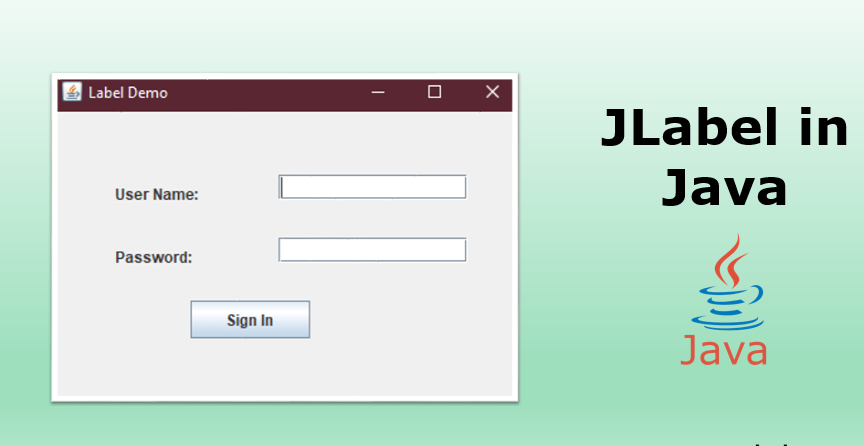
答:可以使用Java Swing或JavaFX创建图形化界面,结合上述SSH连接方法实现登录功能,创建一个包含用户名、密码输入框和登录按钮的窗口,点击登录按钮后调用SSH连接代码进行验证,若验证成功,可以在界面中显示远程服务器的输出或执行其他操作,需要注意的是,图形化界面可能会增加代码复杂度,且需要处理用户输入和界面更新等问题。
如何确保Java与Linux之间的SSH连接安全?
答:可以采取以下措施确保连接安全:
- 使用SSH密钥认证:生成SSH密钥对,将公钥部署到Linux服务器,私钥保存在客户端,这样可以避免每次连接时输入密码,提高安全性。
- 禁用密码认证:在Linux服务器的SSH配置中禁用密码认证,只允许密钥认证,防止密码泄露风险。
- 限制IP访问:配置Linux服务器的防火墙,只允许特定IP地址的客户端连接,减少被攻破的风险。
- 使用加密通信:确保SSH连接使用加密通信,防止数据在传输过程中被窃取或改动