上一篇
html5 视频如何全屏
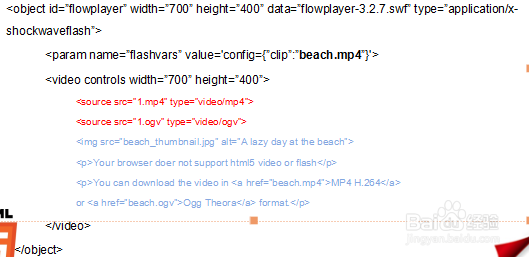
使 HTML5 视频全屏,可使用 JavaScript 的 requestFullscreen() 方法,示例代码如下:,“`html,Your video here,
HTML5视频全屏播放的详细实现方法
HTML5提供了强大的全屏API,使开发者能够轻松实现视频的全屏播放功能,以下将详细介绍如何通过HTML、CSS和JavaScript实现视频全屏播放,并处理不同浏览器的兼容性问题。
HTML5全屏API基础
HTML5的全屏API允许将特定元素(如视频、图片或整个页面)扩展到全屏模式,核心方法是requestFullscreen(),用于请求进入全屏,而document.exitFullscreen()则用于退出全屏,需要注意的是,全屏操作必须由用户交互(如点击或触摸事件)触发,不能自动执行。
基本实现步骤
-
HTML结构
创建一个包含视频元素的HTML结构。
<div id="videoContainer"> <video id="myVideo" src="video.mp4" controls></video> <button id="fullscreenBtn">全屏</button> </div> -
CSS样式
设置视频容器和视频的基本样式:
#videoContainer { position: relative; max-width: 800px; margin: 0 auto; } video { width: 100%; height: auto; } -
JavaScript逻辑
添加全屏切换的JavaScript代码:
const video = document.getElementById('myVideo'); const fullscreenBtn = document.getElementById('fullscreenBtn'); fullscreenBtn.addEventListener('click', () => { if (!document.fullscreenElement) { video.requestFullscreen() .then(() => { console.log('进入全屏模式'); }) .catch((err) => { console.error(`全屏失败: ${err.message}`); }); } else { document.exitFullscreen() .then(() => { console.log('退出全屏模式'); }); } });
浏览器兼容性处理
不同浏览器对全屏API的支持可能有所不同,尤其是旧版浏览器需要添加前缀,以下是兼容多浏览器的代码示例:
function enterFullscreen(element) { if (element.requestFullscreen) { element.requestFullscreen(); } else if (element.mozRequestFullScreen) { // Firefox element.mozRequestFullScreen(); } else if (element.webkitRequestFullscreen) { // Chrome, Safari element.webkitRequestFullscreen(); } else if (element.msRequestFullscreen) { // IE11 element.msRequestFullscreen(); } } function exitFullscreen() { if (document.exitFullscreen) { document.exitFullscreen(); } else if (document.mozCancelFullScreen) { // Firefox document.mozCancelFullScreen(); } else if (document.webkitExitFullscreen) { // Chrome, Safari document.webkitExitFullscreen(); } else if (document.msExitFullscreen) { // IE11 document.msExitFullscreen(); } }
优化用户体验
-
全屏样式调整
使用CSS伪类:fullscreen为全屏状态的元素设置样式。
video:fullscreen { width: 100vw; height: 100vh; object-fit: contain; / 保持视频比例 / background-color: black; }
-
监听全屏状态变化
通过fullscreenchange事件监听全屏状态的变化,并更新按钮文本或执行其他操作:
-
错误处理
监听fullscreenerror事件,处理全屏请求失败的情况:
document.addEventListener('fullscreenerror', (event) => { console.error('全屏请求失败:', event); });
-
iOS设备
- 添加webkit-playsinline属性,防止视频自动全屏并跳转到系统播放器: <video playsinline webkit-playsinline></video>
- 在CSS中设置object-fit: cover;以保持视频比例: video { object-fit: cover; }
-
Android设备
- 确保WebView启用了JavaScript和支持全屏播放的配置: webView.getSettings().setJavaScriptEnabled(true); webView.getSettings().setLoadWithOverviewMode(true); webView.getSettings().setUseWideViewPort(true);
- 在WebChromeClient中处理全屏事件: webView.setWebChromeClient(new WebChromeClient() { @Override public void onShowCustomView(View view, CustomViewCallback callback) { // 隐藏原WebView,显示全屏视图 } @Override public void onHideCustomView() { // 恢复原WebView } });
-
视频全屏后变形
- 使用object-fit属性控制视频填充方式: video { width: 100%; height: 100%; object-fit: contain; / 保持比例 / }
-
全屏按钮不起作用
- 确保全屏操作由用户交互触发(如点击事件)。
- 检查浏览器是否支持全屏API,并处理兼容性问题。
-
移动端视频自动全屏
- 在iOS设备上,添加playsinline属性防止自动全屏: <video playsinline webkit-playsinline></video>
- 在Android设备上,确保WebView配置正确,并处理自定义全屏逻辑。
- 全屏操作未由用户交互触发(如点击事件)。
- 浏览器不支持全屏API或需要添加前缀。
- 视频元素被隐藏或不可见。
- 跨域iframe未添加allowfullscreen属性。
解决方法:检查代码是否在用户交互事件中调用全屏方法,并确保浏览器兼容性处理正确。
- iOS设备:通常可以通过双击视频或点击自定义退出按钮触发exitFullscreen()方法。
- Android设备:可以通过系统返回键或自定义按钮退出全屏。
完整示例代码
以下是一个包含HTML、CSS和JavaScript的完整示例:
<!DOCTYPE html> <html lang="zh-CN"> <head> <meta charset="UTF-8"> <meta name="viewport" content="width=device-width, initial-scale=1.0">HTML5视频全屏示例</title> <style> body { font-family: sans-serif; display: flex; justify-content: center; align-items: center; min-height: 100vh; background-color: #f0f2f5; } #videoContainer { position: relative; max-width: 800px; width: 100%; border: 1px solid #ccc; box-shadow: 0 4px 8px rgba(0,0,0,0.1); background-color: #fff; padding: 20px; border-radius: 8px; text-align: center; } video { width: 100%; height: auto; border-radius: 4px; } button { margin-top: 10px; padding: 10px 20px; font-size: 16px; cursor: pointer; background-color: #007bff; color: white; border: none; border-radius: 5px; transition: background-color 0.3s ease; } button:hover { background-color: #0056b3; } / 全屏样式 / video:fullscreen { width: 100vw; height: 100vh; object-fit: contain; background-color: black; } #videoContainer:fullscreen { padding: 0; box-shadow: none; background-color: black; } </style> </head> <body> <div id="videoContainer"> <video id="myVideo" src="video.mp4" controls playsinline webkit-playsinline></video> <button id="fullscreenBtn">全屏</button> </div> <script> const video = document.getElementById('myVideo'); const fullscreenBtn = document.getElementById('fullscreenBtn'); function enterFullscreen(element) { if (element.requestFullscreen) { element.requestFullscreen(); } else if (element.mozRequestFullScreen) { // Firefox element.mozRequestFullScreen(); } else if (element.webkitRequestFullscreen) { // Chrome, Safari element.webkitRequestFullscreen(); } else if (element.msRequestFullscreen) { // IE11 element.msRequestFullscreen(); } } function exitFullscreen() { if (document.exitFullscreen) { document.exitFullscreen(); } else if (document.mozCancelFullScreen) { // Firefox document.mozCancelFullScreen(); } else if (document.webkitExitFullscreen) { // Chrome, Safari document.webkitExitFullscreen(); } else if (document.msExitFullscreen) { // IE11 document.msExitFullscreen(); } } fullscreenBtn.addEventListener('click', () => { if (!document.fullscreenElement) { enterFullscreen(video); } else { exitFullscreen(); } }); // 监听全屏状态变化 document.addEventListener('fullscreenchange', () => { if (document.fullscreenElement) { fullscreenBtn.textContent = '退出全屏'; } else { fullscreenBtn.textContent = '全屏'; } }); </script> </body> </html>
相关FAQs
Q1:为什么点击全屏按钮没有反应?
A1:可能的原因包括:
Q2:移动端视频全屏后如何退出全屏?
A2:在移动端,退出全屏的方式因设备而异:
移动端特殊处理
在移动端(如iOS和Android),全屏播放可能需要额外配置:
常见问题与解决方案